
Once you are done with the customization click on the next Tab which is to choose the Products to show the pre-order button:
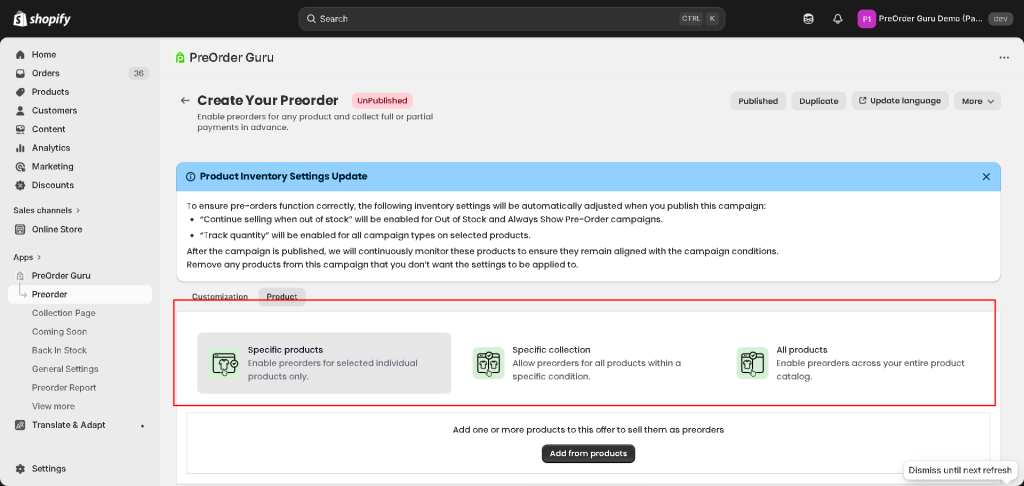
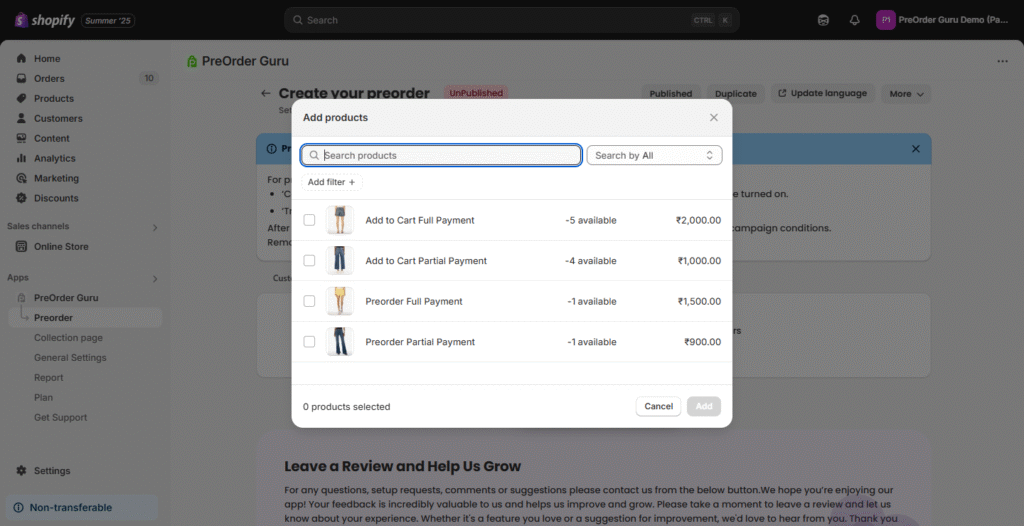
1. Specific products : Enable preorders for selected individual products only.
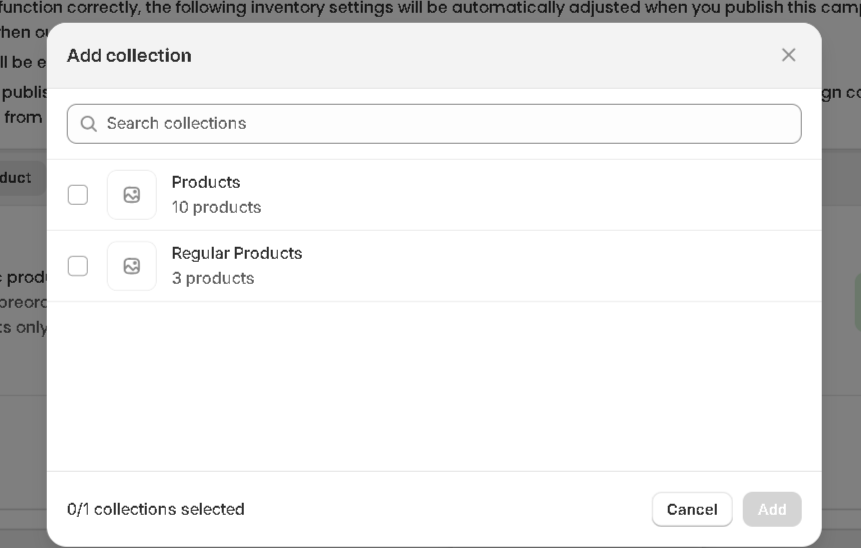
2. Specific collection: Allow preorders for all products within a specific condition.
3. All products: Enable preorders across your entire product catalogue.
Product inventory settings updates #
For the preorder to work, when you publish this campaign:
Make sure to enable the “Continue selling when out of stock” option in your Shopify Admin for selected product.
‘Track quantity’ for all campaign types will be enabled for selected products.
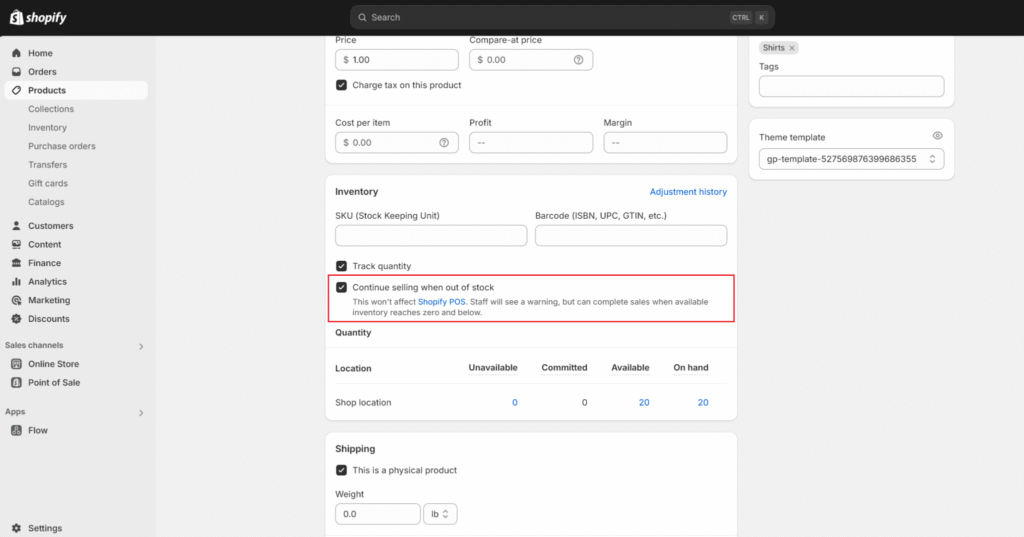
You need to ensure that these updates are turned on otherwise, it will show a red alert message for the particular product you have chosen, as mentioned in the screenshot :
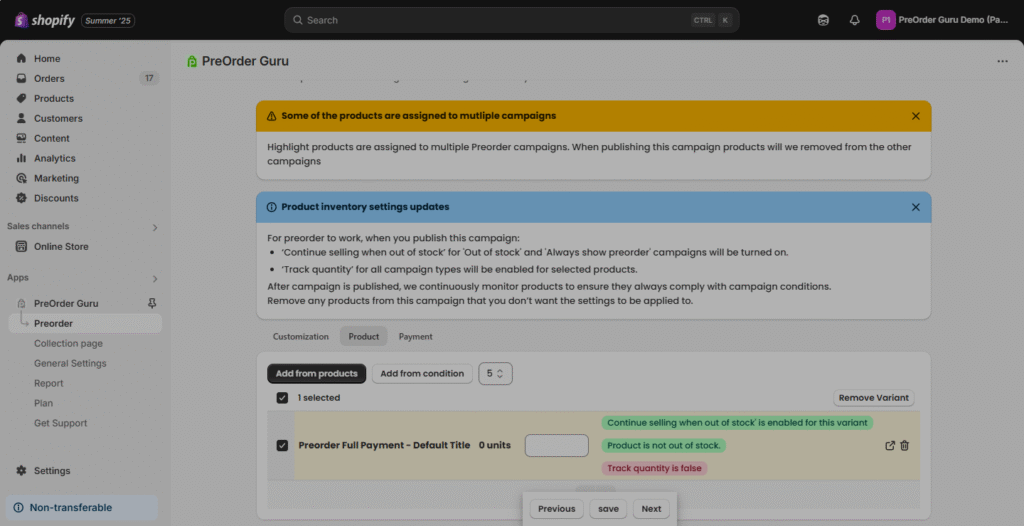
After the campaign is published, we continuously monitor products to ensure they always comply with campaign conditions.
How you can update the conditions yourself, please check :
1. Click on the Link Icon as mentioned below in the video :
Remove any products from this campaign that you don’t want the settings to be applied to.
If the user doesn’t know how to apply all conditions, just click on More (on the top right side) > In the dropdown, you will see TOGGLE CONTINUE SETTINGS, and our app will automatically update the conditions. Check the tutorial below :


