Pre-orders allow your customers to purchase products that are not yet in stock or available. With PreOrder Guru, you can easily enable pre-orders on specific products or variants, customize the messaging, and control your pre-order flow with flexibility.
Step-by-Step Guide: #
Step 1: Go to the PreOrder Guru Dashboard #
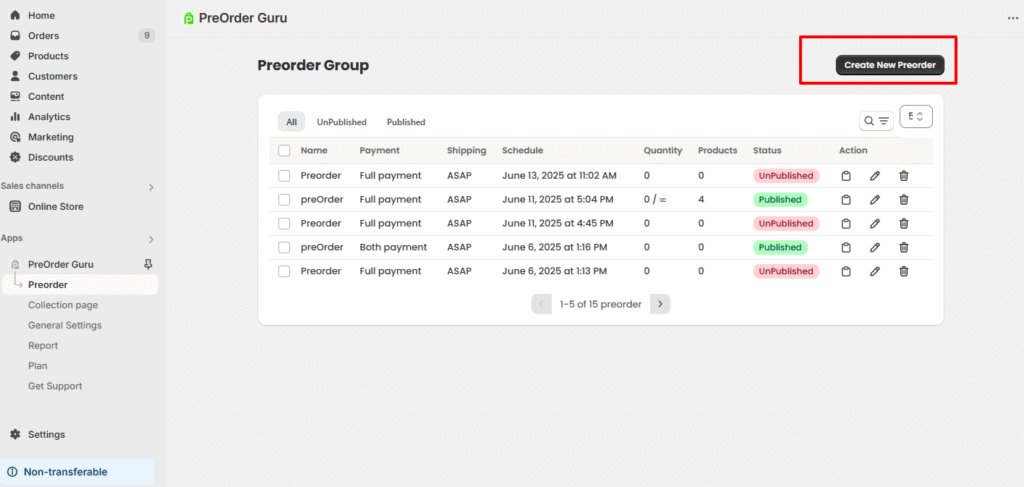
From your Shopify admin, open Apps → PreOrder Guru. On the left-hand side navigation menu of the app, click on “Preorder”.
Step 2: Create New Preorder #
You’ll see an option called “Create New Preorder”, as shown in the screenshot below. Click on the “Create New Preorder” button.
Step 3: Customize the Pre-Order – To check all option in details Click Here #
- In the Customization panel:
- Add Title: Enter a title for your Preorder campaign.
- Offer Start Date: Set the date and time when the preorder should go live.
- Preorder Button Customization:
- Preorder Button Label: Update the Button Label (e.g., “Pre-Order Now”, “Reserve Yours Today”).
- Customizable Preorder Texts: Edit the Cart Note or Product Message to set clear expectations for your customers.
- Styling: You can easily customize your Pre-Order Button to match your brand style.
- Set a shipping timeline for each product: You have option to select how you want to fulfill orders with preorder products.
- Add a Disclaimer Message (e.g., “Ships on [date]” or “Limited Availability”).
- Preorder Badge Customization:
- Add Title: Update the badge title with phrases like “Pre-Order Now,” “Coming Soon,” so customers instantly understand the product’s status.
- Styling: You can easily customize your Pre-Order Badge to match your brand style and messaging.
Step 4: Set up Payment type – To check all options in details Click Here #
- Payment Options:
- Full Payment: Charge customers the entire product price upfront at the time of preorder.
- Partial Payment: Allow customers to pay a portion of the total price in advance. The remaining amount can be collected later, based on your store’s fulfilment policy.
- Both Payment: You can also select both the option that is the full payment and partial payment.
- Payment Option Display Style and Text:
- Display options side-by-side for a compact look.
- Show each option in a separate line for better clarity.
- Option Type: Button – Clean and clickable design for fast selection.
- Radio – Traditional style for clear option differentiation.
- Customise Payment label:
- Full Payment Label: Customise the text shown for the full payment option. Example: Change “Full Payment” to “Pay Now” or “100% Upfront” to match your store tone.
- Partial Payment Label: Edit the partial payment label to fit your brand’s voice. Example: Use “Pay Deposit” or “Partial Upfront”.
- Show Partial Payment Note: Add a short note under the partial payment option to explain payment timing or benefits.
- Customers Pay Now: Set how much customers pay upfront when placing a pre-order. Example: Enter
30if you want to charge ₹30 now. - Collect Remaining Payment: Define when to collect the remaining balance. Example: Enter
7to charge the remaining amount 7 days after preorder.
- Full Payment Label: Customise the text shown for the full payment option. Example: Change “Full Payment” to “Pay Now” or “100% Upfront” to match your store tone.
- Discount Settings:
- Encourage pre-orders by offering a small incentive. Choose from:
- Per cent Off – e.g., 10% off preorder items
- Fixed Amount Off – e.g., ₹500 off the regular price
- None – No discount applied
Step 5: Select the Product – To check all option in details Click Here #
- You will see 3 option:
- All products:
- Enable preorders across your entire product catalogue.
- Enable preorders across your entire product catalogue.
- Specific collection:
- Allow preorders for all products within a specific collection.
- Allow preorders for all products within a specific collection.
- Specific products
- Enable preorders for selected individual products only.
- Enable preorders for selected individual products only.
- All products:
- You’ll see a list of all your selected products.
- Choose the product (or variant) you want to enable for pre-orders.
If the user doesn’t know how to apply all conditions, just click on More (on the top right side) > In the dropdown you will see TOGGLE CONTINUE SETTINGS, and our app will automatically update the conditions.
Step 6: Save and Preview #
- Click the “Save & Publish Preorder” button to preview your product page.
- You’ll now see the “Pre-Order” button and custom message appear in place of the regular “Add to Cart” button.
If you face any issues or need assistance setting up pre-orders, our support team is happy to help. 📩 Reach us anytime at support@webframez.com — we’ll make sure you’re up and running in no time.
🌐 Update Pre-Order Button Label in Multiple Languages #
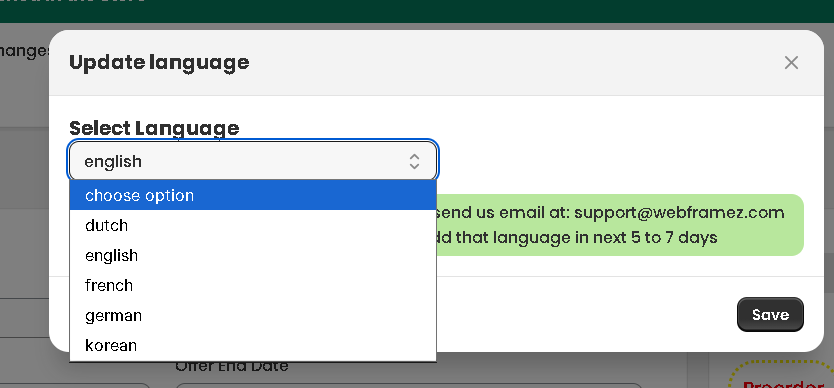
PreOrder Guru allows you to customise the Pre-Order button label for different storefront languages, ensuring a localized experience for your customers.
To update the label:
- Click on the Update Language button at the top right
- Select your desired language from the dropdown
- Enter the button label in that language
- Click Save to apply the changes
💡 Tip: Customise labels for each language to improve clarity and conversion for international customers.