
PreOrder Guru allows you to display a mixed cart warning notification when customers add both pre-order and in-stock items to the same cart.
You can customize the message, style, and language to match your store’s branding and ensure clear communication.
Step-by-Step Guide #
Step 1: Open Mixed Cart Settings #
From your Shopify admin:
- Go to Apps → PreOrder Guru
- Click on the General Settings
- Click on Notification Settings
Step 2: Update Notification Message #
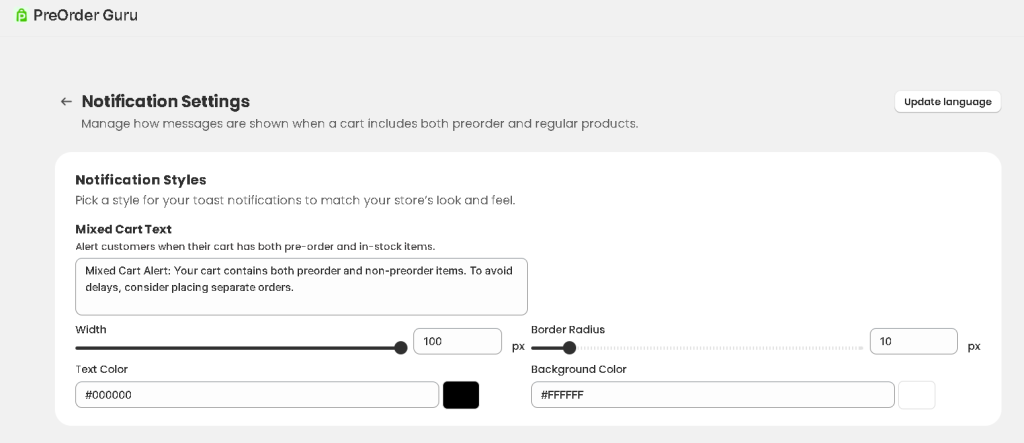
- Add the Mixed Cart Notification Message
- Customise the warning text shown to customers
Default Message:
“You have pre-order and in-stock items in the same cart.”
🪄 Tip: Keep the message clear so customers understand the situation before checkout.
Step 3: Customize Notification Style #
You can design the notification to match your store’s look and feel:
- Width – Adjust the size of the notification
- Border Radius – Control corner roundness
- Text Color – Match your brand typography
- Background Color – Align with your theme colors
These settings help maintain a consistent storefront experience.
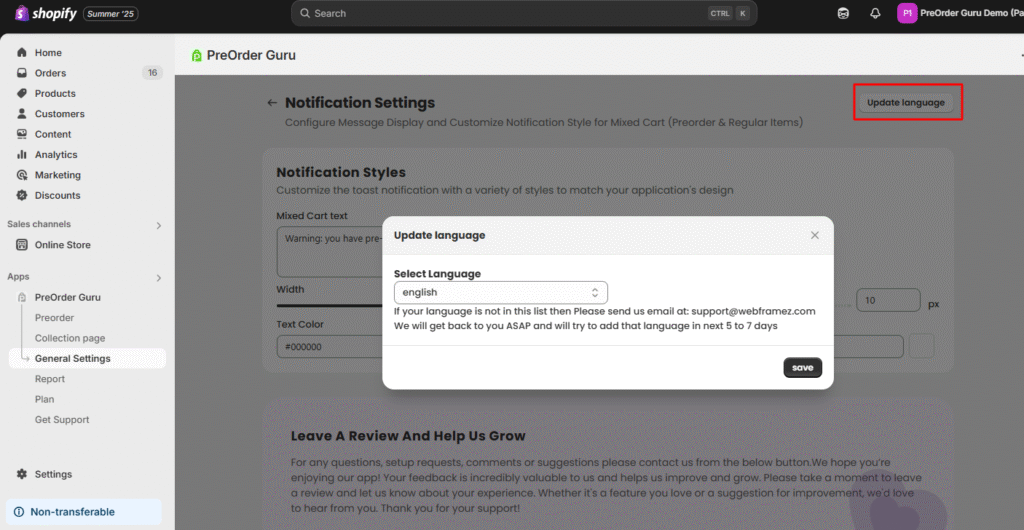
Step 4: Update Language (Optional) #
- Click the Update Language button on the right side
- Select your preferred language
- Customize the message accordingly
- Click Save
🌐 This ensures your warning message is shown correctly for different customer regions.
Step 5: Save Changes #
Click Save to apply your settings.
Your mixed cart warning will now appear when applicable.
💡 How It Works #
When a customer adds both pre-order and regular items to their cart, a notification will appear to inform them before checkout.
This helps reduce confusion and improves the overall shopping experience
💬 Need Help? #
If you need help customizing your mixed cart notification, feel free to contact our support team.
📩 We’re here to help you optimize your store experience.


