
With three easy steps, you can complete your set up of your pre-order.
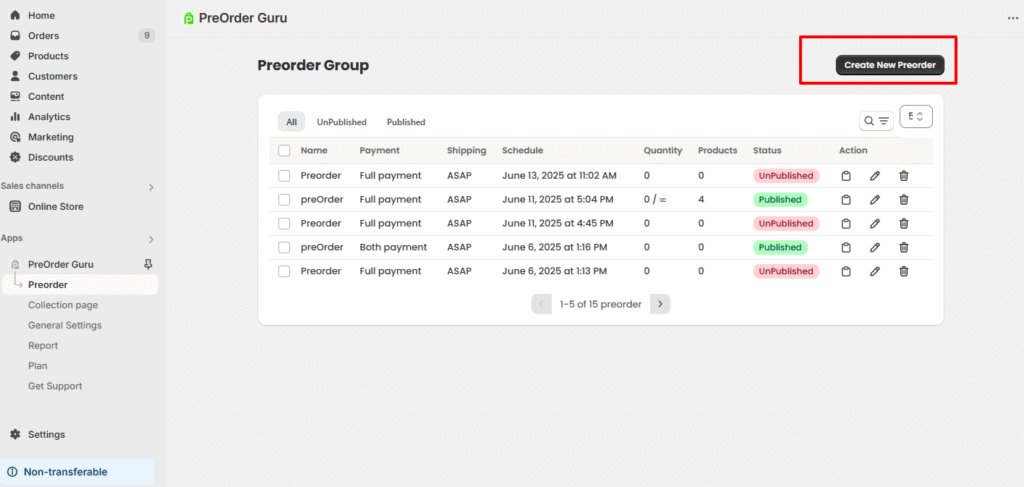
First of all, click on “New Pre Order” as shown in the screenshot :
As soon as you click on the new preorder, the first step that appears is customisation, where you can customise the preorder button, shipping timeline, and preorder enable badge.
Please check the screenshot below to see how the admin side looks :
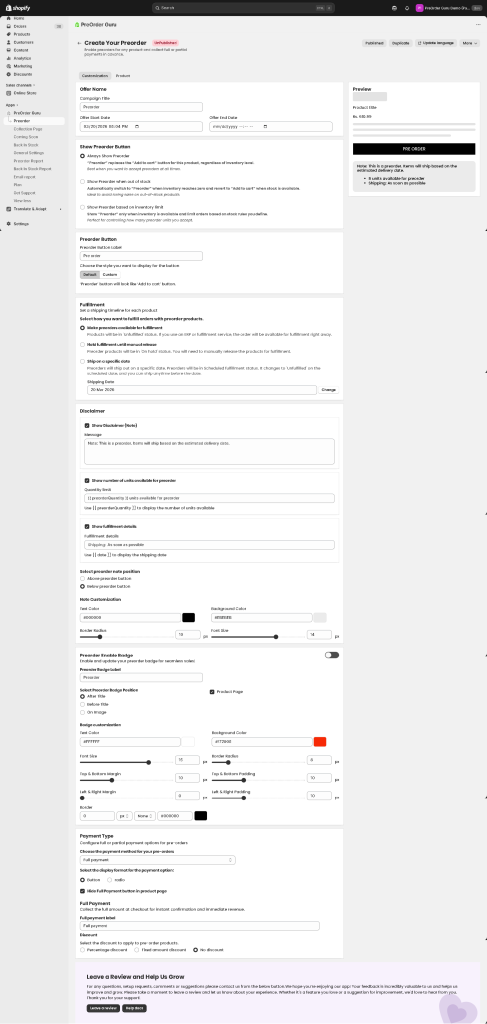
Title #
- Enter a title for your preorder campaign.
- This helps you identify the preorder settings, especially if you’re managing multiple preorders.
Offer Start Date / Offer End Date #
- Set the date and time when the preorder should go live.
- Format:
MM/DD/YYYY HH:MM AM/PM - Example:
06/16/2025 11:58 AM
Show Preorder Button #
- Always Show Preorder
- “Preorder” replaces the “Add to cart” button for this product, regardless of inventory level.
Best when you want to accept preorders at all times.
- “Preorder” replaces the “Add to cart” button for this product, regardless of inventory level.
- Show Preorder when out of stock
- Automatically switch to “Preorder” when inventory reaches zero and revert to “Add to cart” when stock is available.
Ideal to avoid losing sales on out-of-stock products.
- Automatically switch to “Preorder” when inventory reaches zero and revert to “Add to cart” when stock is available.
- Show Preorder based on inventory limit
- Show “Preorder” only when inventory is available and limit orders based on stock rules you define.
Perfect for controlling how many preorder units you accept.
- Show “Preorder” only when inventory is available and limit orders based on stock rules you define.
Preorder Button #
- Preorder Button Label: Customise the label that appears on the preorder button.
- Example:
Pre order,Reserve Now,Coming Soon
- Example:
- Button Style Option: Choose how the preorder button should look.
- It will typically match the “Add to Cart” button to ensure visual consistency on your store.
Fulfillment Method #
Decide how preorder orders should be handled post-purchase:
- Make Preorders Available for Fulfilment
- The product status will be set to ‘Unfulfilled’
- Ideal if you use ERP or fulfillment services, as the order will be pushed for fulfillment immediately.
- Hold Fulfilment Until Manual Release
- The product status will be ‘On hold’
- You must manually release the order when ready to fulfill.
- Useful when shipment dates are uncertain or based on inventory arrival.
- Ship on a specific date
- Preorders will ship out on a specific date. Preorders will be in Scheduled fulfillment status. It changes to ‘Unfulfilled’ on the scheduled date, and you can ship anytime before the date.
Disclaimer Message #
- Enable Disclaimer: Toggle ON to show a note to the customer.
- Message Example: “Note: This is a preorder. Items will ship based on the estimated delivery date.”
This helps manage customer expectations regarding shipping timelines.
Show Number of Units Available #
- Toggle this ON to display how many units are available for preorder.
- Use the placeholder
{{ preorderQuantity }}to auto-display available stock.- Example display:
10 units available for preorder
- Example display:
Show Fulfilment Details #
- Display fulfilment status like
ASAP,Ships in July, etc., to inform customers of shipping timelines.
Preorder Note Position #
- Choose where the preorder note (disclaimer or fulfillment details) appears:
- Above the preorder button
- Below the preorder button
Note Customization #
Customize how the note appears visually:
- Text Color: e.g.,
#000000(Black) - Background Color: e.g.,
#EBEBEB(Light Grey) - Border Radius: e.g.,
10px(for rounded corners) - Font Size: e.g.,
1px(recommended to increase for visibility)
For the next steps click here.
Preorder Enable Badge and its customization #
Preorder Enable Badge Guide #
Enable and customize your preorder badge to enhance visibility and boost sales on your store.
Preorder Badge Label #
- Label Text:
Preorder
(You can customize this text to anything like “Coming Soon”, “Pre-order Now”, etc.)
Select Badge Position #
Choose where the badge should appear relative to your product title or image:
- After Title
- Before Title
- On Image (Note: This option does not work on the Product Page.)
Select Pages for Badge Display #
Decide where you want the preorder badge to be visible:
- Product Page
- Collection Page
- Home Page
- Search Page
Badge Customization Options #
Customize the style of your preorder badge for brand consistency
Make sure to save your changes after updating badge settings for them to reflect properly on your storefront.


