
Connect PreOrder Guru with Klaviyo to send preorder and back-in-stock activity directly to your Klaviyo account. Use the data sent by PreOrder Guru to create targeted campaigns, automate customer communication, and build personalized flows based on preorder activity.
With the integration, PreOrder Guru can send selected preorder, payment, reminder, and back-in-stock events to Klaviyo.
Before You Start #
To connect PreOrder Guru with Klaviyo, you will need:
- An active Klaviyo account
- A Klaviyo Private API Key
- A Klaviyo list where you want to manage your subscribers
- PreOrder Guru Premium Plan
Klaviyo integration is available under the Premium plan in PreOrder Guru.
Step 1: Open Klaviyo Settings #
- Go to Shopify Admin → Apps → PreOrder Guru.
- Open General Settings.
- Scroll to the Integrations section.
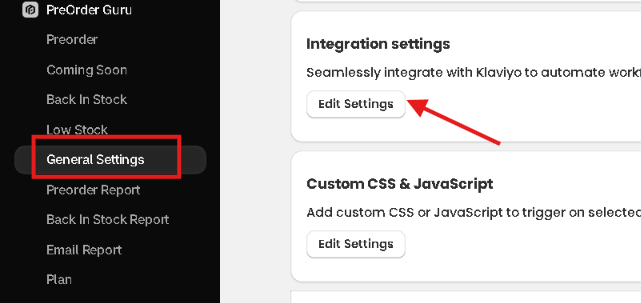
You will see the Klaviyo integration settings, including the connection option, API key, list selection, and event settings.
Step 2: Enable Klaviyo Integration #
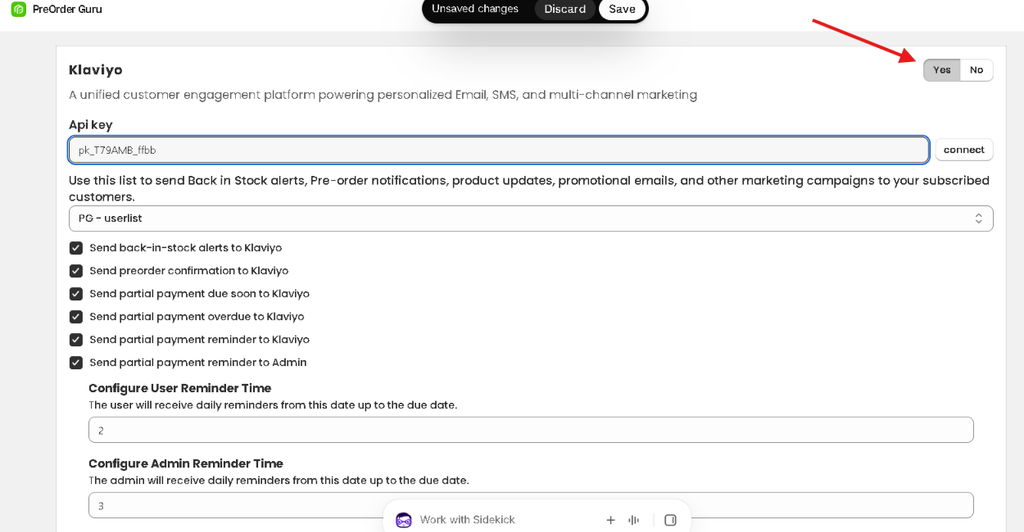
Under the Klaviyo section:
- Select Yes to enable Klaviyo integration.
- Enter your Klaviyo Private API Key in the API Key field.
Important: Use a Klaviyo Private API Key with the required permissions for your integration.
Step 3: Get Your Klaviyo Private API Key #
To create a Private API Key in Klaviyo:
- Log in to your Klaviyo account.
- Go to Account → Settings.
- Open API Keys.
- Select Private API Keys.
- Click Create Private API Key.
- Give your key a name, such as PreOrder Guru.
- Select scope required*:
Subscriptions - Full Access– Read/WriteProfiles - Full Access– Read/WriteList - Full Access– Read/Write - We recommend the Full Access Key so that future feature additions will not be affected.
- Create the key and copy it.
Paste the key into the API Key field in PreOrder Guru.
Follow this guide to access and manage your API keys in Klaviyo.
Step 4: Connect Klaviyo #
After entering the API key:
- Click Connect.
- PreOrder Guru will verify the API key.
- Once connected, select the Klaviyo list you want to use.

The selected list is used by PreOrder Guru for the customer data associated with supported Klaviyo activities.
Step 5: Select the Events You Want to Send #
PreOrder Guru allows you to control which activities are sent to Klaviyo.
You can enable or disable the available options using the checkboxes.
- Send back-in-stock alerts to Klaviyo
- Send preorder confirmation to Klaviyo
- Send partial payment due soon to Klaviyo
- Send partial payment overdue to Klaviyo
- Send partial payment reminder to Klaviyo
- Send partial payment reminder to Admin
Available PreOrder Guru Metrics #
| Metric | Description |
|---|---|
| PG Payment Reminder for Admin | Sends payment reminder activity related to the store admin. |
| PG Preorder Activity | Sends preorder-related activity to Klaviyo when a customer places or interacts with a preorder. |
| PG Pending Payment Success | Sends activity when a pending preorder payment is successfully completed. |
| PG Back In Stock Alert | Sends activity when a back-in-stock alert is triggered for a customer. |
These metrics can be used as triggers or conditions when creating Klaviyo flows, depending on the event data available in the metric.
Step 6: Configure Reminder Timing #
For payment reminder metrics, PreOrder Guru also provides reminder timing settings.
Configure User Reminder Time #
Enter the number of days before the payment due date when the customer reminder process should begin.
Example:
If you enter 2, the customer can receive daily reminders starting 2 days before the payment due date, according to the app’s reminder logic.
Configure Admin Reminder Time #
Enter the number of days before the payment due date when the admin reminder process should begin.
Example:
If you enter 3, admin reminders can begin 3 days before the payment due date.
Step 7: Save Your Settings #
After configuring the integration:
- Review your API key and selected Klaviyo list.
- Check the metrics you want to send.
- Configure reminder settings if required.
- Click Save.
Your selected PreOrder Guru activity will now be sent to Klaviyo when the corresponding events occur.
PreOrder Guru Klaviyo Metrics & Variables #
PreOrder Guru sends preorder, payment, back-in-stock, and admin reminder activity to Klaviyo. These events can be used to create targeted email/SMS campaigns, customer segments, and automated flows.
Accessing your metrics #
Head to Analytics > Metrics. Klaviyo lists the metrics available in your account, including metrics created through integrations and custom events.
Use the Search metrics field to search for:
- PG Preorder Activity
- PG Pending Payment Success
- PG Back In Stock Alert
- PG Payment Reminder for Admin
Each metric contains event variables that you can use in Klaviyo email templates and flows.
1. PG Back In Stock Alert #
The PG Back In Stock Alert metric is triggered when a product becomes available again and a customer is notified.
You can use these variables to personalize your back-in-stock emails.
| Field | Klaviyo Variable | Description |
|---|---|---|
| Title | {{ event.title|default:"" }} | Main name of the product. |
| Variants | {{ event.variants|default:"" }} | Selected product options, such as size or color. |
| Store Name | {{ event.storeName|default:"" }} | Name of the store where the product is listed. |
| Dial Code | {{ event.dialCode|default:"" }} | International calling code for the customer’s phone number. |
| Variant ID | {{ event.variantId|default:"" }} | Unique ID of the product variant. |
{{ event.email|default:"" }} | Customer’s email address. | |
| Price | {{ event.price|default:"" }} | Product price. |
| Dial Country | {{ event.dialCountry|default:"" }} | Country code associated with the customer’s phone number. |
| Currency Symbol | {{ event.currencySymbol|default:"" }} | Currency symbol used for the product price. |
| Buy Now URL | {{ event.buyNowUrl|default:"" }} | Link that takes the customer directly to checkout. |
| Shop Name | {{ event.shopName|default:"" }} | Brand or shop name associated with the store. |
| Add to Cart URL | {{ event.atcUrl|default:"" }} | Link that automatically adds the product to the cart. |
| Product Handle | {{ event.productHandle|default:"" }} | Product identifier used in the product URL. |
| Customer Name | {{ event.name|default:"" }} | Customer’s name. |
| Phone | {{ event.phone|default:"" }} | Customer’s phone number. |
| Image | {{ event.image|default:"" }} | URL of the product image. |
2. PG Preorder Activity #
The PG Preorder Activity metric contains preorder-related customer activity.
It covers:
- Preorder Confirmation
- Preorder Due Soon
- Preorder Overdue
- Preorder Reminder
The actionType variable identifies which preorder event triggered the metric.
User Data #
| Field | Klaviyo Variable | Description |
|---|---|---|
| Action Type | {{ event.actionType }} | Identifies the type of preorder activity and can be used as a trigger filter in Klaviyo to differentiate between preorder email events. |
| Preorder Confirmation | {{ event.actionType.preorder-confirmation }} | Use this value in the trigger filter to send a flow or email specifically for Preorder Confirmation. |
| Partial Payment Reminder | {{ event.actionType.partial-payment-reminder }} | Use this value in the trigger filter to send a flow or email specifically for Partial Payment Reminder. |
| Partial Payment Overdue | {{ event.actionType.partial-payment-overdue }} | Use this value in the trigger filter to send a flow or email specifically for Partial Payment Overdue notifications. |
| Partial Payment Due Soon | {{ event.actionType.partial-payment-due-soon }} | Use this value in the trigger filter to send a flow or email specifically for Partial Payment Due Soon notifications. |
{{ event.userData.email }} | Customer’s email address. | |
| First Name | {{ event.userData.firstName }} | Customer’s first name. |
| Last Name | {{ event.userData.lastName }} | Customer’s last name. |
| Phone | {{ event.userData.phone }} | Customer’s phone number. |
Product & Preorder Details #
These variables are available inside the preorder data.
Repeat For: event.preorderData.preorder
Item Alias: item
| Field | Klaviyo Variable | Description |
|---|---|---|
| Title | {{ item.title }} | Product title. |
| Price | {{ item.price }} | Product price. |
| Currency Symbol | {{ item.currencySymbol }} | Currency symbol for the product price. |
| Quantity | {{ item.quantity }} | Number of units ordered. |
| Image URL | {{ item.image }} | Product image URL. |
| Variant ID | {{ item.variantId }} | Shopify variant ID. |
| Product Handle | {{ item.handle }} | Product URL handle/slug. |
| SKU | {{ item.sku }} | Product SKU. |
| Paid Type | {{ item.paid }} | Payment status or payment type for the item. |
| Payment URL | {{ item.paymentUrl }} | Link for the customer to complete payment. |
| On Hold Status | {{ item.onHold }} | Indicates whether fulfillment is on hold. |
| Shop Name | {{ item.shopName }} | Shop name associated with the preorder. |
| Store Name | {{ item.storeName }} | Store’s display name. |
| Order ID | {{ item.orderId }} | Shopify order ID. |
| Campaign ID | {{ item.campaignId }} | Preorder campaign identifier. |
| Selling Plan ID | {{ item.sellingPlanId }} | Shopify selling plan ID. |
| Customer Email | {{ item.customerEmail }} | Customer’s email address. |
| Customer Locale | {{ item.customerLocale }} | Customer’s locale or language. |
| Requires Shipping | {{ item.requiresShipping }} | Indicates whether the item requires shipping. |
| Ship Date | {{ item.shipDate }} | Expected shipping date. |
| Due At | {{ item.dueAt }} | Date when the remaining preorder payment is due. |
| Discount | {{ item.discount }} | Discount applied to the item. |
| Variants | {{ item.variants }} | Product variant details. |
| Created At | {{ item.createdAt }} | Date and time when the order was created. |
Shipping Information #
Product Shipping Data #
Repeat For: event.preorderData.shippingAddress.productShippingData
Item Alias: ship_item
| Field | Klaviyo Variable | Description |
|---|---|---|
| Title | {{ ship_item.title }} | Product title. |
| Product ID | {{ ship_item.productId }} | Shopify product ID. |
| Variant ID | {{ ship_item.variantId }} | Shopify variant ID. |
| Selling Plan ID | {{ ship_item.sellingPlanId }} | Shopify selling plan ID. |
| Pay Method | {{ ship_item.payMethod }} | Payment method used for the item. |
| Due Payment Date | {{ ship_item.duePaymentDate }} | Date the remaining payment is due. |
| Shipping Date | {{ ship_item.shippingDate }} | Expected shipping date. |
| Fulfillment Order Status | {{ ship_item.fulfillmentOrderStatus }} | Current fulfillment status. |
| Is Partial Payment | {{ ship_item.isPartialPayment }} | Indicates whether only part of the payment has been collected. |
| On Hold | {{ ship_item.onHold }} | Indicates whether fulfillment is on hold. |
| Requires Shipping | {{ ship_item.requiresShipping }} | Indicates whether the item requires shipping. |
Shipping Address #
| Field | Klaviyo Variable | Description |
|---|---|---|
| Address | {{ event.preorderData.shippingAddress.shippingAddress.address }} | Customer’s street address. |
| City | {{ event.preorderData.shippingAddress.shippingAddress.city }} | Customer’s city. |
| Province / State | {{ event.preorderData.shippingAddress.shippingAddress.province }} | Customer’s state or province. |
| Country | {{ event.preorderData.shippingAddress.shippingAddress.country }} | Customer’s country. |
| Zip Code | {{ event.preorderData.shippingAddress.shippingAddress.zip }} | Customer’s postal or ZIP code. |
Due Date Summary #
| Field | Klaviyo Variable | Description |
|---|---|---|
| Due Amount | {{ event.preorderData.dueDateSummary.0.dueAmount }} | Remaining unpaid amount. |
| Total Amount | {{ event.preorderData.dueDateSummary.0.totalAmount }} | Total amount for the payment schedule. |
| Status | {{ event.preorderData.dueDateSummary.0.status }} | Payment status for the due date. |
| Due At | {{ event.preorderData.dueDateSummary.0.dueAt }} | Date the payment is due. |
3. PG Pending Payment Success #
The PG Pending Payment Success metric is triggered when a pending preorder payment is successfully completed.
This event can be used to send a confirmation or update customers after their outstanding preorder payment has been paid.
Preorder Details #
Repeat For: event.preorderData.preorder
Item Alias: item
| Field | Klaviyo Variable | Description |
|---|---|---|
| Title | {{ item.title }} | Product title. |
| Price | {{ item.price }} | Product price. |
| Currency Symbol | {{ item.currencySymbol }} | Currency symbol. |
| Quantity | {{ item.quantity }} | Number of units ordered. |
| Image URL | {{ item.image }} | Product image URL. |
| Variant ID | {{ item.variantId }} | Shopify variant ID. |
| SKU | {{ item.sku }} | Product SKU. |
| Product Handle | {{ item.handle }} | Product URL handle. |
| Order ID | {{ item.orderId }} | Shopify order ID. |
| Shop Name | {{ item.shopName }} | Shopify store/shop name. |
| Store Name | {{ item.storeName }} | Store’s display name. |
| Campaign ID | {{ item.campaignId }} | Preorder campaign identifier. |
| Selling Plan ID | {{ item.sellingPlanId }} | Shopify selling plan ID. |
Customer Data #
| Field | Klaviyo Variable | Description |
|---|---|---|
{{ event.userData.email }} | Customer’s email address. | |
| First Name | {{ event.userData.name }} | Customer’s first name. |
| Last Name | {{ event.userData.lastName }} | Customer’s last name. |
| Phone | {{ event.userData.phone }} | Customer’s phone number. |
| Action Type | {{ event.actionType }} | Identifies the preorder event that triggered the metric. |
Shipping Address #
| Field | Klaviyo Variable | Description |
|---|---|---|
| Address | {{ event.preorderData.shippingAddress.address }} | Customer’s street address. |
| City | {{ event.preorderData.shippingAddress.city }} | Customer’s city. |
| Province / State | {{ event.preorderData.shippingAddress.province }} | Customer’s state or province. |
| Country | {{ event.preorderData.shippingAddress.country }} | Customer’s country. |
| Zip Code | {{ event.preorderData.shippingAddress.zip }} | Customer’s postal or ZIP code. |
Listing Data #
| Field | Klaviyo Variable | Description |
|---|---|---|
| Updated At | {{ event.preorderData.listing.updated_at }} | Date and time the listing was last updated. |
| Name | {{ event.preorderData.listing.name }} | Listing name. |
| Price | {{ event.preorderData.listing.price }} | Listing price. |
| Specific Variants | {{ event.preorderData.listing.specific_variants }} | Variants specific to the listing. |
| Platform Product ID | {{ event.preorderData.listing.platform_product_id }} | Product ID on the sales platform. |
4. PG Payment Reminder for Admin #
The PG Payment Reminder for Admin metric is designed for store administrators. It provides information about preorder orders with an outstanding payment balance.
Top-Level Variables #
| Field | Klaviyo Variable | Description |
|---|---|---|
| Shop Name | {{ event.shopName }} | Name of the online store. |
| Total Orders Due | {{ event.totalOrdersDue }} | Total number of orders with a pending balance. |
Order Details #
Repeat For: event.preorderData.preorder
Item Alias: item
| Field | Klaviyo Variable | Description |
|---|---|---|
| Shop Name | {{ item.shopName }} | Shop name associated with the preorder item. |
| Order Name | {{ item.orderName }} | Order number/name. |
| Due Amount | {{ item.dueAmount }} | Remaining balance due. |
| Due Date | {{ item.dueDate }} | Deadline for paying the remaining balance. |
| Customer Name | {{ item.customerName }} | Customer’s full name. |
| Customer Email | {{ item.customerEmail }} | Customer’s email address. |
| Order ID | {{ item.orderId }} | Unique order identifier. |
| Payment Link | {{ item.paymentLink }} | Direct link to complete the remaining payment. |
How to Create a Metric-Triggered Flow in Klaviyo #
Once PreOrder Guru is connected to Klaviyo and your metrics are available, you can use them to create automated flows.
For example, you can create a flow for a Preorder Confirmation using the PG Preorder Activity metric.
The same process can be used with the other PreOrder Guru metrics to create different automated flows.
Example: Create a Preorder Confirmation Flow #
Step 1: Create a New Flow #
- Log in to your Klaviyo account.
- Go to Flows.
- Click Create Flow.
- Select Create from Scratch or Build Your Own.
- Enter a flow name, such as Preorder Confirmation.
Step 2: Select the PreOrder Guru Metric #
Select Metric as the flow trigger.
Choose API and select: PG Preorder Activity
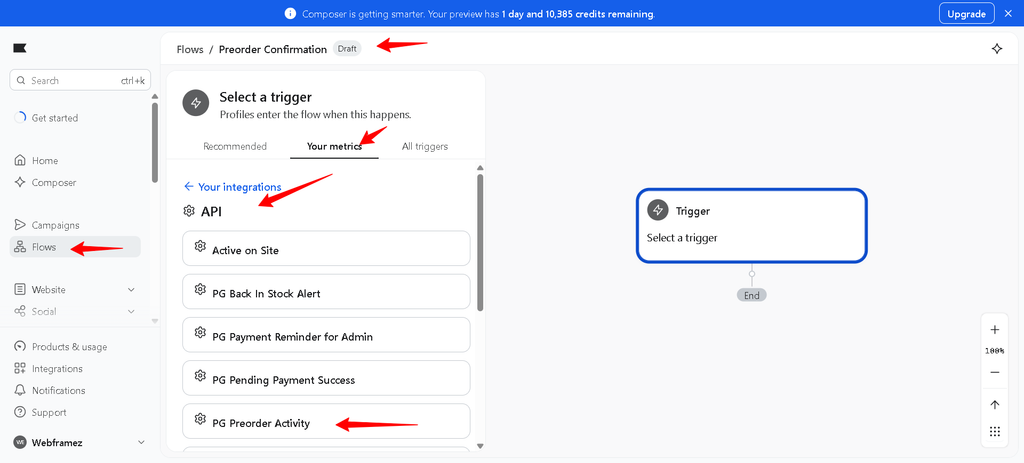
The PG Preorder Activity metric includes:
- Preorder Confirmation
- Partial Payment Due Soon
- Partial Payment Overdue
- Partial Payment Reminder
Since this example is for a Preorder Confirmation, we need to add a trigger filter so the flow only runs when a preorder confirmation event is sent.
Step 3: Add a Trigger Filter #
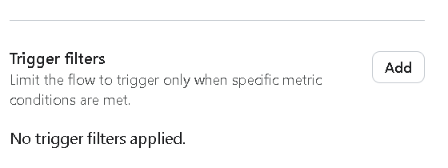
After selecting PG Preorder Activity:
- Open the Trigger Filters section.
- Add a filter using the Action Type event property.
- Set the filter to the value used for Preorder Confirmation.
- Save the trigger settings.
The actionType variable identifies which activity triggered the PG Preorder Activity metric.
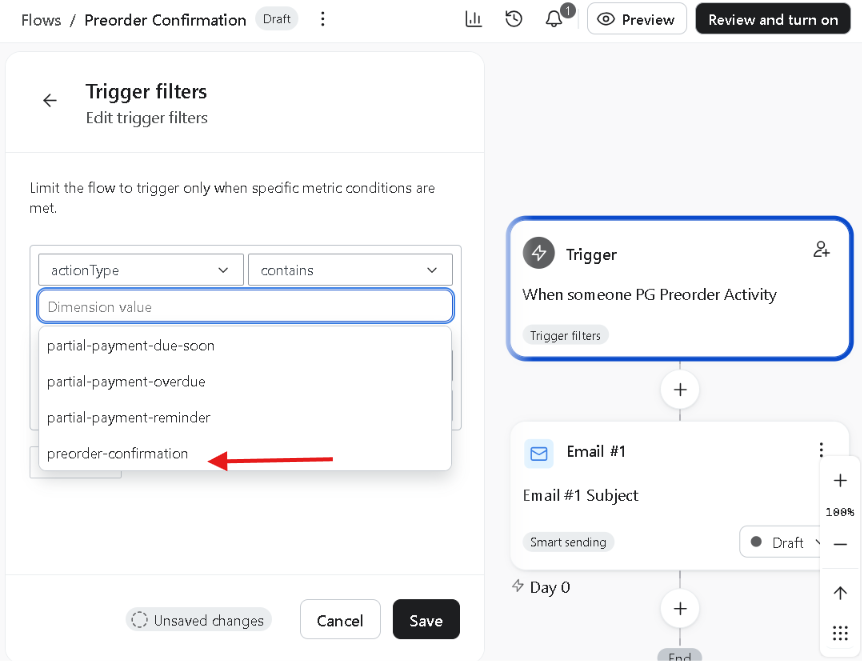
Note: The Action Type property allows you to differentiate between the four events included in PG Preorder Activity. When creating a Klaviyo metric-triggered flow, use the appropriate actionType value as a trigger filter to make sure the flow sends the correct email template for that event.
Step 4: Create a Dynamic Preorder Confirmation Email #
Step 1: Add an Email to the Flow #
- Add an Email action below the trigger.
- Click Edit Email.
- Choose a template or create a new email template.
- Add your preorder confirmation message.
- Use PreOrder Guru event variables to display dynamic customer and preorder information.
- Save the email.
Step 2: Add a Product Information Block #
To display the preorder products:
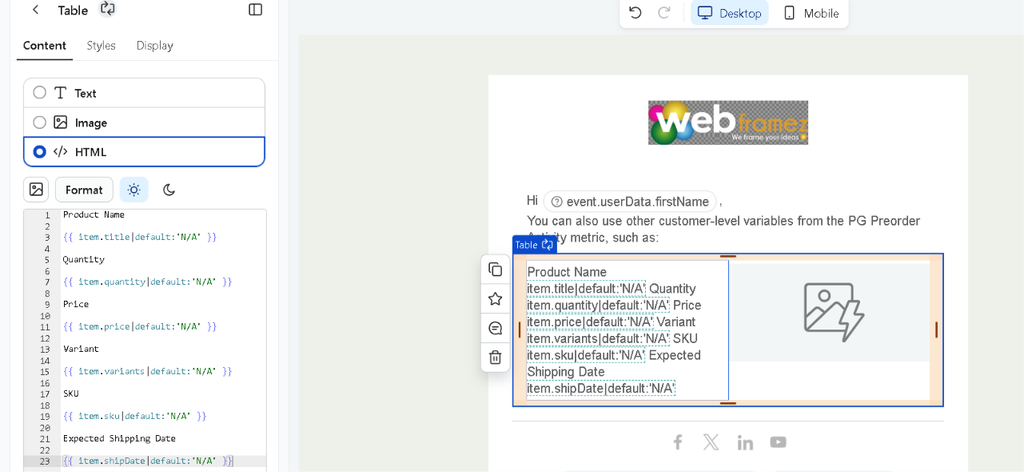
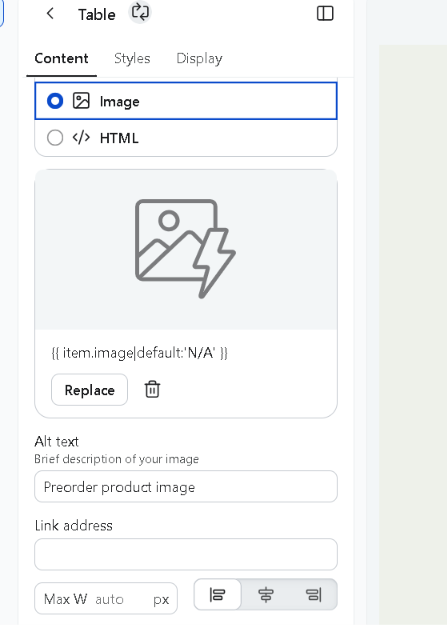
- Add a Table, or other suitable content block to your email.
- Add the product information you want to display, such as:
- Product name
- Product image
- Quantity
- Price
- Variant
- SKU
- Expected shipping date
Since a customer can have one or multiple preorder products, use Klaviyo’s Content Repeat option to make the product section dynamic. This allows Klaviyo to automatically repeat the product information for each preorder item in the customer’s order.
Step 3: Set Up Content Repeat #
Now configure the block to repeat for each preorder product.
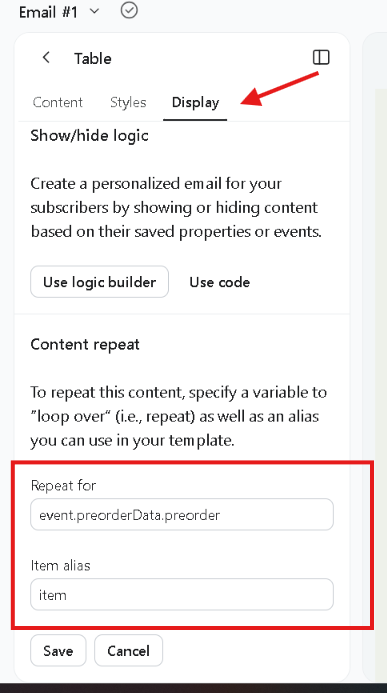
- Select the content block you created.
- Open the Display tab in the block settings.
- Scroll down to Content Repeat.
- Click Add Content Repeat.
- In Repeat for, enter: event.preorderData.preorder
- In Item alias, enter: item
- Click Save.
Step 4: Add Dynamic Variables to the Block #
Once Content Repeat is configured, use the item alias to display information for each preorder product.
Step 5: Add Customer Information #
Customer information can be added outside the Content Repeat block because it only needs to appear once in the email.
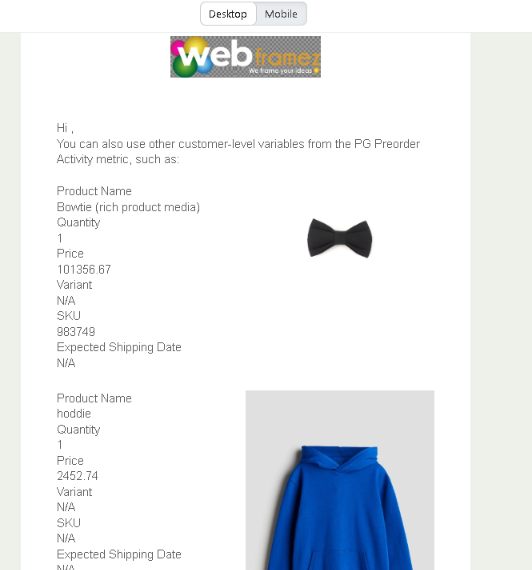
Step 6: Preview the Email #
After adding the variables:
- Save your email template.
- Use Preview & Test in Klaviyo.
- Select a profile/event containing PreOrder Guru preorder data.
- Check that the product information is displayed correctly.
- Make sure the product block repeats when the customer has multiple preorder items.
Step 07: Set the Email to Live #
Once you have finished testing:
- Return to the email settings in the flow.
- Make sure the email is configured correctly.
- Change the email status to Live.
- Review the flow once more.
- Turn the flow Live.
The flow will now automatically send the preorder confirmation email when PreOrder Guru sends a matching Preorder Confirmation event to Klaviyo.
Use the Same Process for Other PreOrder Guru Events #
Once you understand this setup, you can create additional Klaviyo flows using the other PreOrder Guru metrics.
For PG Preorder Activity, you can create separate flows by changing the Action Type filter:
- Preorder Confirmation
- Partial Payment Due Soon
- Partial Payment Overdue
- Partial Payment Reminder
For the other metrics, select the relevant metric as the flow trigger and use the variables provided in the Klaviyo Metrics & Variables section of this article.
Ready-to-Use Klaviyo Email Templates #
To make the setup easier, PreOrder Guru provides ready-to-use Klaviyo email templates with the required variables already configured.
You can copy these templates into your Klaviyo account and customize the branding, content, and styling according to your store. These templates can help you quickly set up automated emails for different preorder events without manually adding each variable.
Import into the other account #
- Log into the other Klaviyo account.
- Go to Content > Templates.
- Select the Email templates tab.
- Click Import.
- Enter a name for the template and upload your
.htmlfile. - Click Import Template.
One thing to note: Klaviyo advises that exporting a drag-and-drop template and re-importing it back into Klaviyo can sometimes cause issues with functionality. If you run into any problems, you may need to tweak the HTML before importing. How to import a custom HTML template.
Download the HTML template


