
When a product is out of stock, customers may leave the collection page without opening the product page to check its availability.
With PreOrder Guru, you can display a Notify Me button directly on the product card. This allows customers to subscribe for a back-in-stock notification without first opening the product page.
This can be especially useful for Shopify stores where customers browse products from collection pages and want to know when an unavailable product will be back in stock.
Before You Start #
Before enabling the Notify Me button on collection pages, make sure Back In Stock is already configured in PreOrder Guru.
If you have not set up Back In Stock yet, first follow our complete guide:
[How to Set Up Back In Stock in PreOrder Guru]
You do not need to configure the Back In Stock feature again. Once it is set up, you can use the page-selection option to control where the Notify Me button appears.
How to Show the Notify Me Button on the Collection Page #
Step 1: Open Back In Stock Settings #
From your Shopify admin:
- Open PreOrder Guru.
- Go to Back In Stock Alerts from the left sidebar.
- Scroll down to the Back In Stock Customization section.
You will find the page-selection settings below the button customization options.
Step 2: Enable the Collection Page Option #
Look for the section:
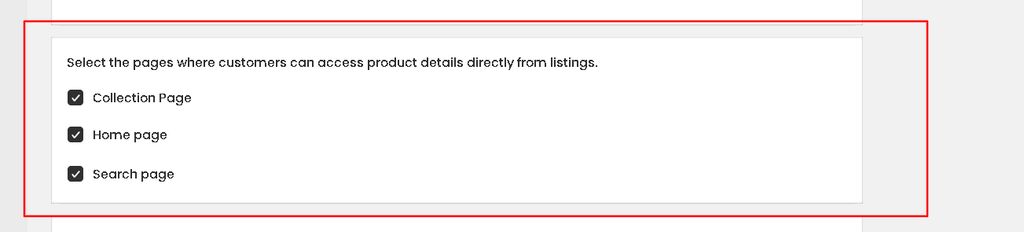
Select the pages where customers can access product details directly from listings.
You will see options such as
- Collection Page
- Home page
- Search page
To show the Notify Me button on product cards within your Shopify collection pages:
- Select Collection Page.
- Keep the other options unchecked if you only want the button on collection pages.
- Save or publish your settings.
What does this setting do? #
The Collection Page option allows customers to interact with the Back In Stock notification directly from the product listing instead of having to open the individual product page.
This means an out-of-stock product can display the Notify Me option directly on its product card.
Step 3: Check Your Collection Page #
Open your Shopify storefront and go to a collection containing an out-of-stock product.
Check the product card. The Notify Me button should now be available directly from the collection page.
When a customer clicks the button, they can enter their details in the Back In Stock notification form.
Other Pages Where You Can Show Notify Me #
PreOrder Guru also provides additional page options in the same setting.
Home Page #
Enable Home page if you want the Notify Me option to be available on product cards displayed on your Shopify homepage.
Search Page #
Enable Search page if you want customers to see the Notify Me option when products appear in Shopify search results.
You can enable one or multiple page types depending on how your storefront is structured.
Frequently Asked Questions #
#
Yes. PreOrder Guru allows you to enable the Collection Page option so customers can access the Notify Me functionality directly from product cards.
#
Yes. The Back In Stock feature should be configured first. After that, you can choose where the Notify Me option should appear.
#
Yes. Select Collection Page and leave the other page options unchecked if you only want the Notify Me option on collection product cards.


