
PreOrder Guru allows you to fully customize email templates sent to your customers. You can update the subject, content, colors, and timing to match your brand and communication style.
Step-by-Step Guide #
Step 1: Open Email Settings #
From your Shopify admin:
- Go to Apps → PreOrder Guru
- Click on General Settings
- Open the Email Settings section
Step 2: General Email Settings #
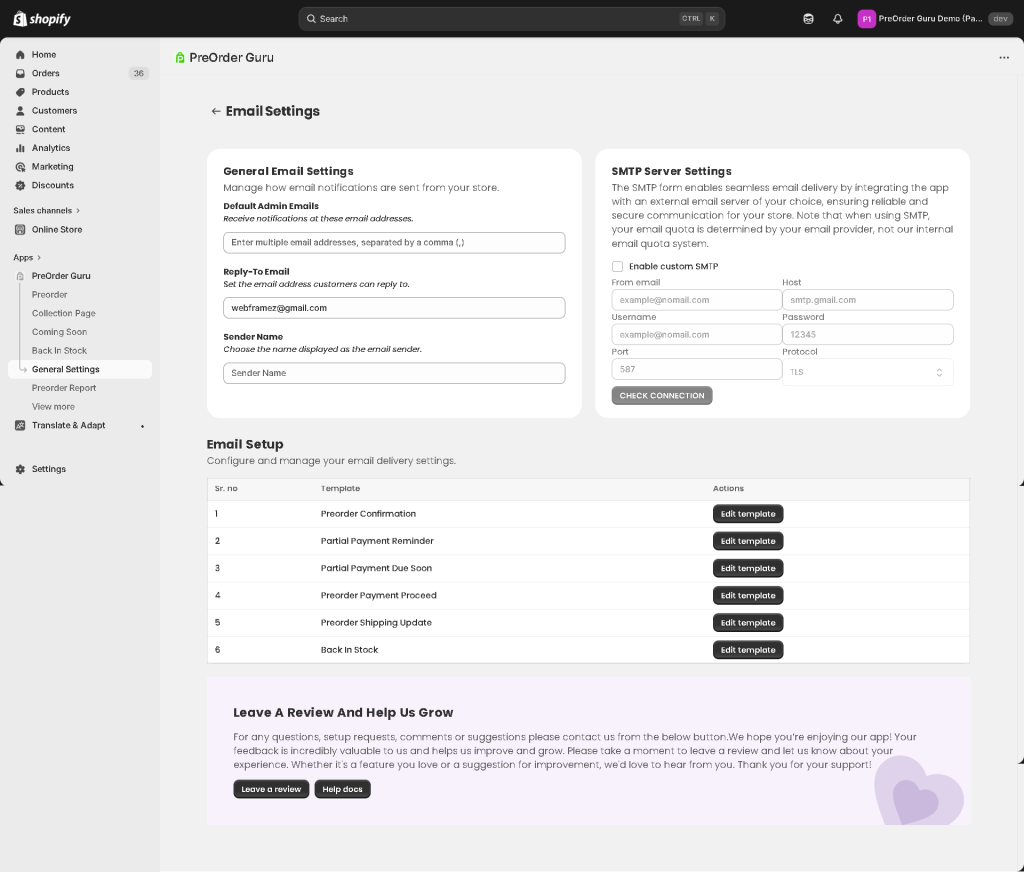
Before editing templates, configure how your emails are sent from your store.
- Default Admin Emails
Add the email addresses where you want to receive notifications.
You can enter multiple emails separated by a comma (,). - Reply-To Email
Set the email address customers can reply to.
Example:storemerchant@gmail.com - Sender Name
Choose the name that will appear as the sender in customer emails.
Example: Your Store Name
Step 3: Choose Email Template #
Under Email Setup, you’ll find different templates:
- Preorder Confirmation
- Partial Payment Reminder
- Partial Payment Due Soon
- Preorder Payment Proceed
- Preorder Shipping Update
- Back In Stock
Click “Edit Template” next to the email you want to customize.
Email Template Types & What You Can Customize #
Each email template in PreOrder Guru serves a specific purpose and includes different customization options based on its use case.
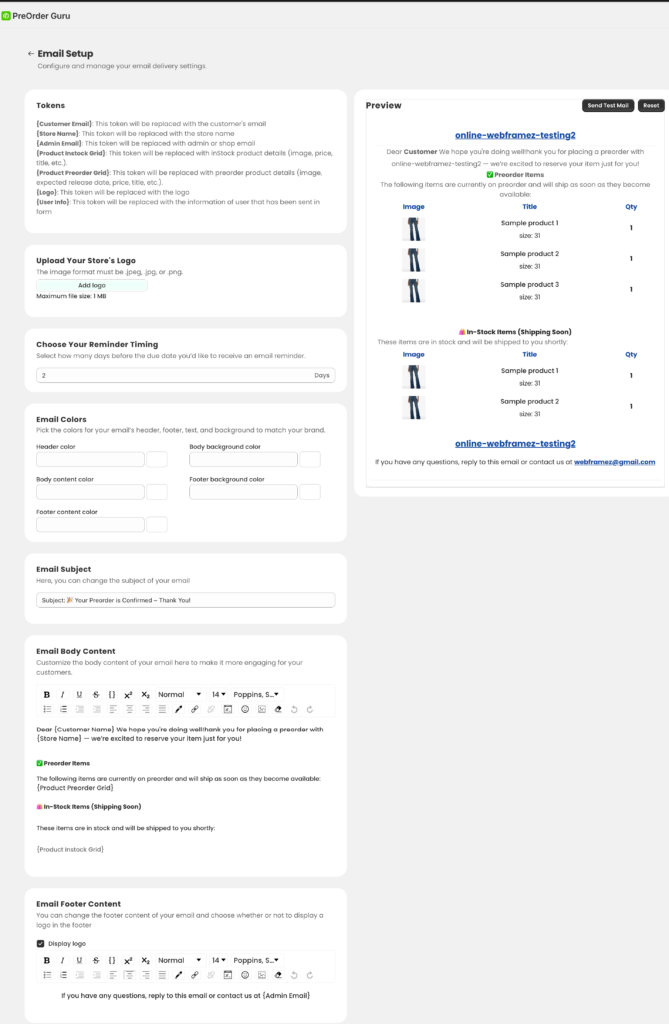
1. Preorder Confirmation #
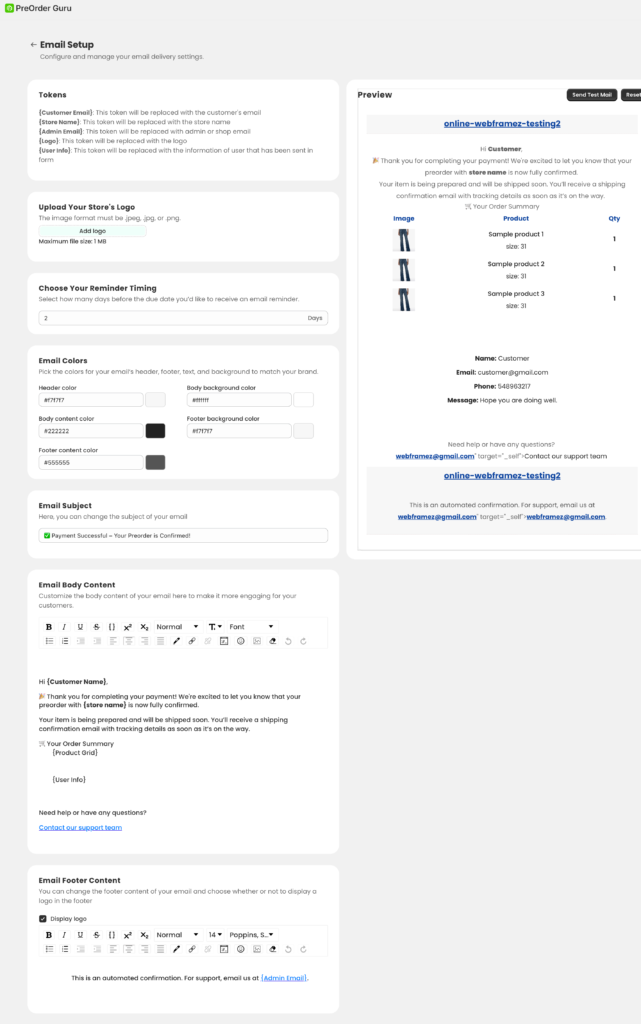
This email is sent when a customer successfully places a pre-order.
You can customize:
- Tokens – Add dynamic details like customer name, product info, etc.
- Upload Your Store’s Logo – Display your brand logo in the email
- Choose Reminder Timing – Set follow-up communication timing
- Email Colors – Match the email design with your brand
- Email Subject – Customize the subject line
- Email Body Content – Add confirmation message and order details
- Email Footer Content – Include support or contact information
2. Partial Payment Reminder #
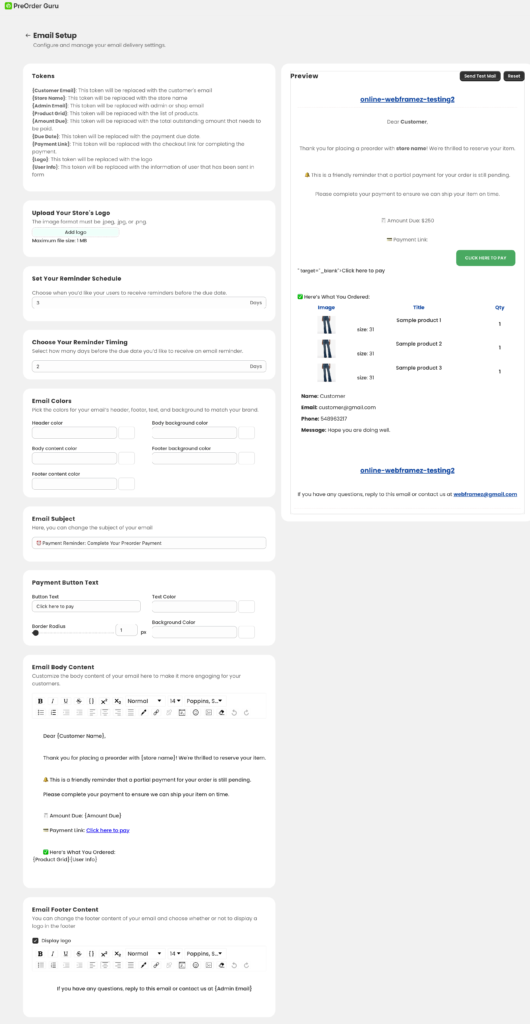
This email reminds customers to complete their remaining payment.
You can customize:
- Set Your Reminder Schedule – Define when reminders should be sent
- Payment Button Text – Customize CTA (e.g., “Pay Now”)
- Tokens – Include dynamic order and payment details
- Upload Your Store’s Logo
- Choose Reminder Timing
- Email Colors
- Email Subject
- Email Body Content
- Email Footer Content
3. Partial Payment Due Soon #
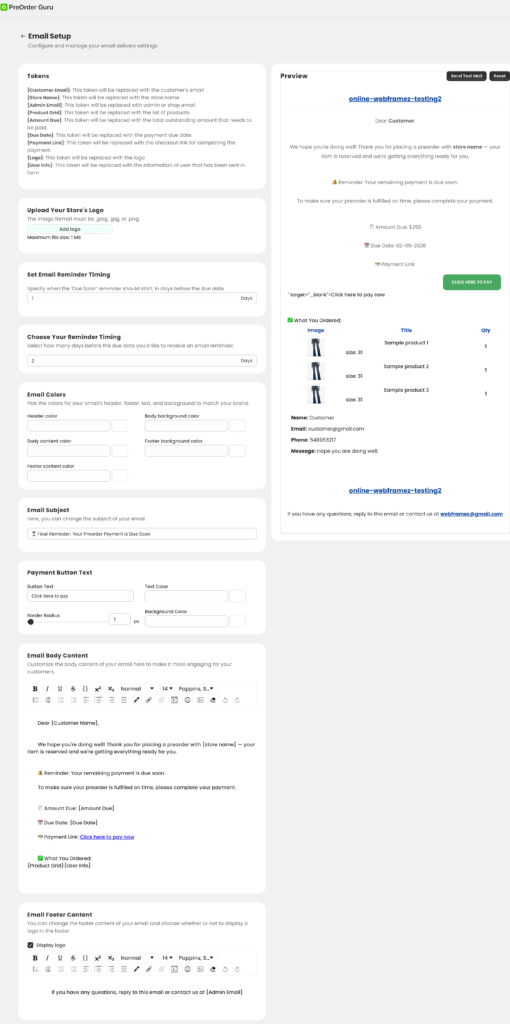
This email notifies customers that their payment due date is approaching.
You can customize:
- Set Email Reminder Timing – Control when this email is triggered
- Payment Button Text – Guide users to complete payment
- Tokens
- Upload Your Store’s Logo
- Choose Reminder Timing
- Email Colors
- Email Subject
- Email Body Content
- Email Footer Content
4. Preorder Payment Proceed #
This email confirms that the remaining payment has been successfully completed.
You can customize:
- Tokens
- Upload Your Store’s Logo
- Choose Reminder Timing
- Email Colors
- Email Subject
- Email Body Content
- Email Footer Content
5. Preorder Shipping Update #
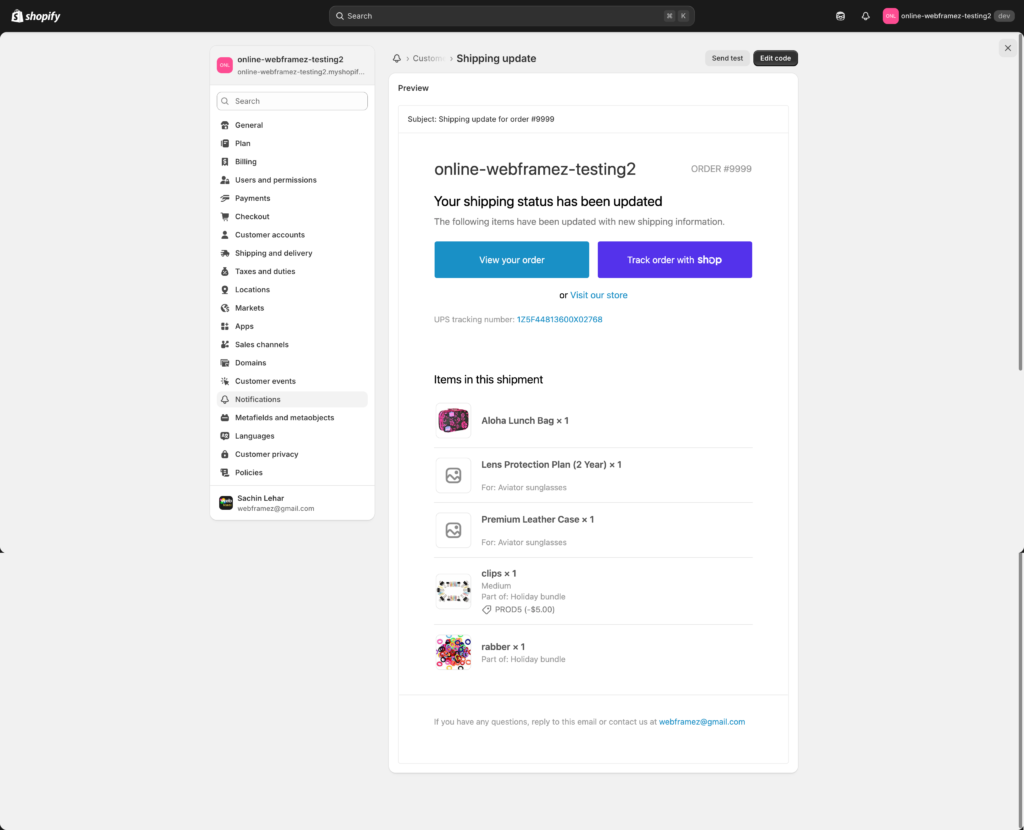
This email is sent when the preorder item is shipped.
👉 Note:
This email is handled directly by Shopify’s shipping notification system.
You can manage and customize it from your Shopify Email Notifications settings.
6. Back In Stock #
This email notifies customers when a product is available again.
You can customize:
- Tokens – Show product and customer details dynamically
- Upload Your Store’s Logo
- Choose Reminder Timing
- Email Colors
- Email Subject
- Cart Button Customization – Customize “Add to Cart” button
- Shop Now Button Customization – Customize redirect CTA
- Email Body Content
- Email Footer Content
💡 Pro Tip #
Each email serves a different stage of the customer journey — from confirmation to payment reminders to restock alerts. Customize them carefully to ensure clear communication and a consistent brand experience.


