
Overview #
The Coming Soon Campaign allows you to create excitement and capture customer interest before your product is launched. You can display a countdown timer and custom message on selected products.
Step 1: Open Coming Soon Setup #
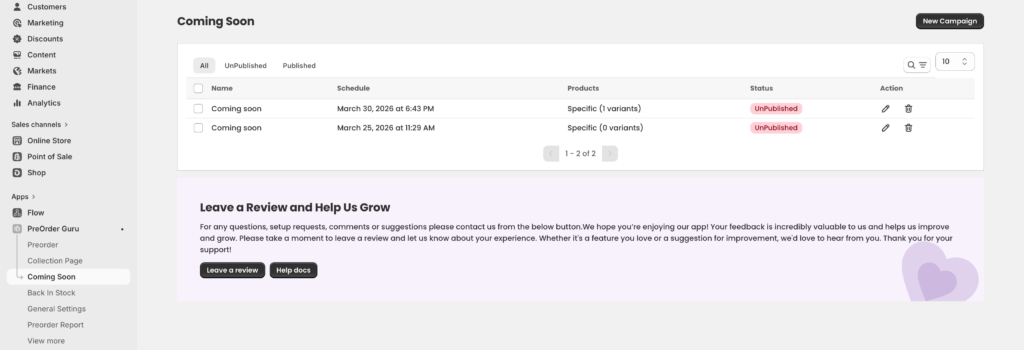
- Go to Coming Soon from the left sidebar
- Click on Set Up Your Coming Soon Campaign
Step 2: Set Campaign Details #
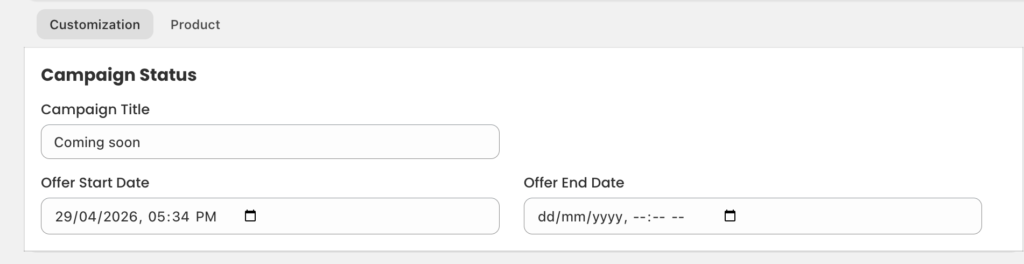
In the Campaign Status section:
- Campaign Title
→ Enter a name (e.g., Coming Soon) - Offer Start Date
→ Select when the campaign should start - Offer End Date (Required) ⚠️
→ This is mandatory to enable the Coming Soon feature
→ Used for countdown timer
Step 3: Choose a Template #
In the Templates section:
- Select a design layout for your coming soon display
- Each template shows:
- Countdown timer
- Heading & subheading
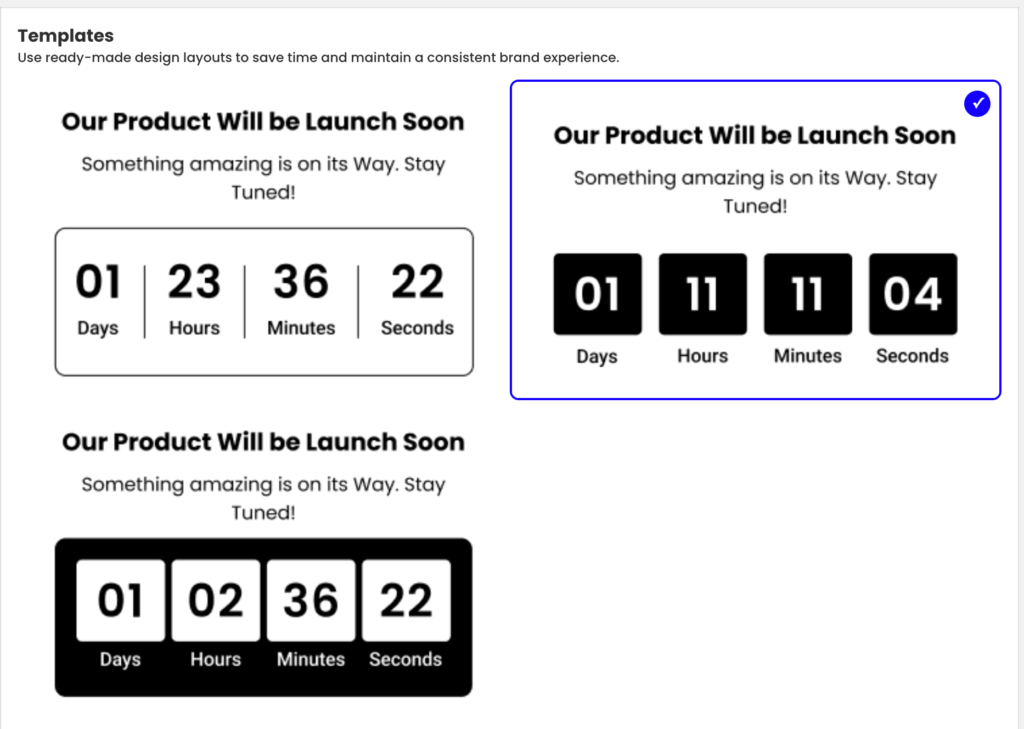
👉 Choose the one that matches your store design
Step 4: Customize Content #
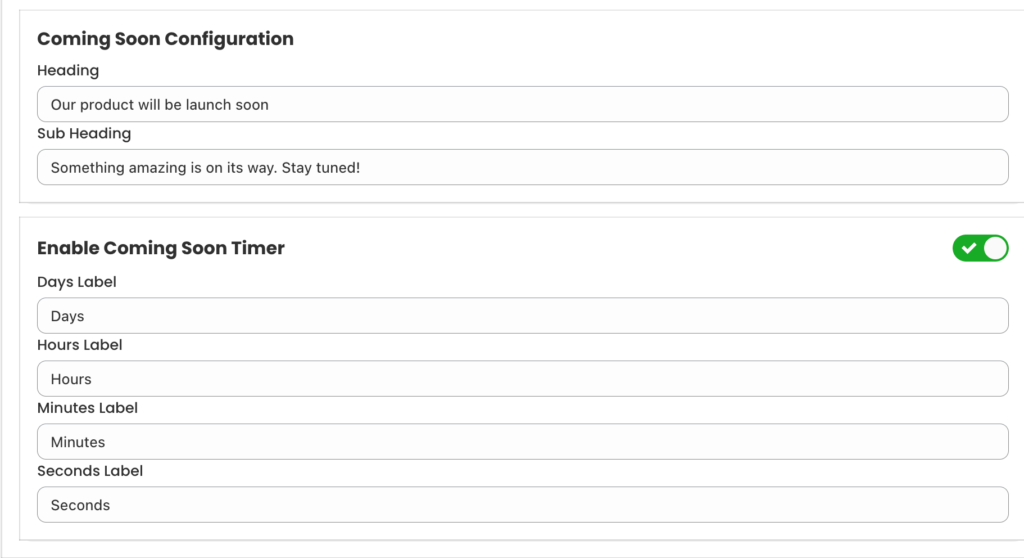
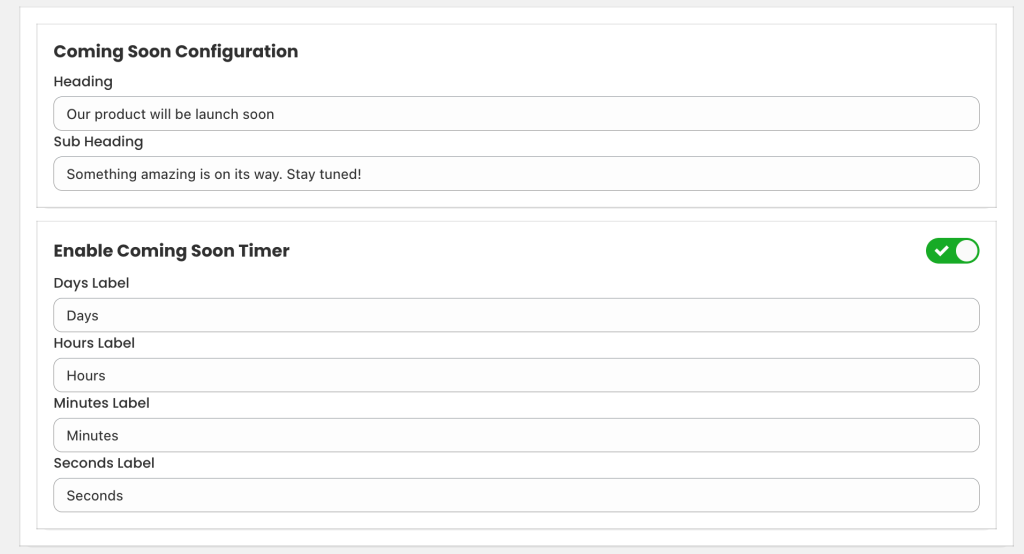
Under Coming Soon Configuration:
- Heading
Example: Our product will be launch soon - Sub Heading
Example: Something amazing is on its way. Stay tuned!
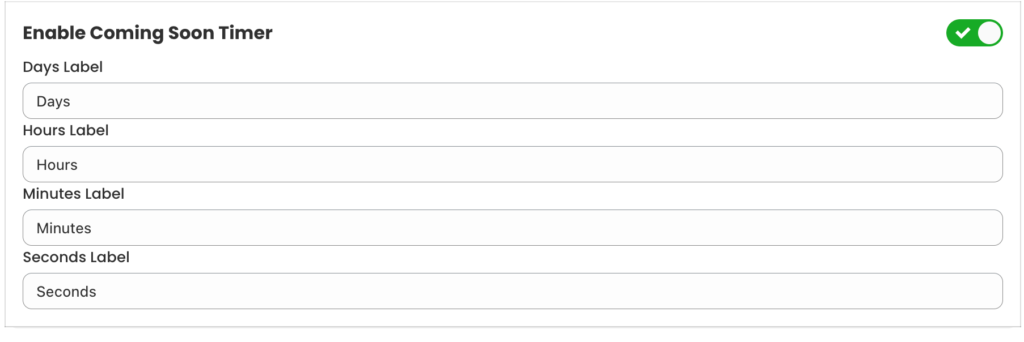
Step 5: Enable Countdown Timer #
- Turn ON Enable Coming Soon Timer
- Customize labels:
- Days
- Hours
- Minutes
- Seconds
👉 Timer will automatically count down based on end date
Step 6: Appearance Settings #
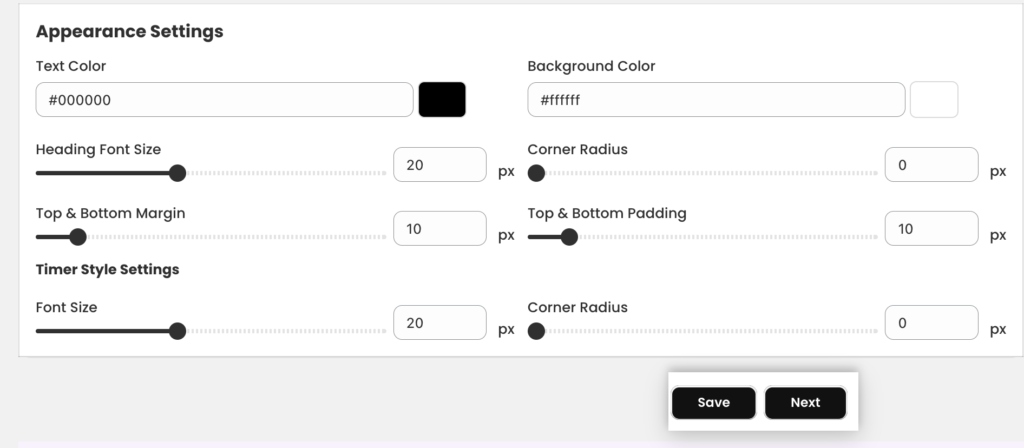
Customize the design:
- Text Color
- Background Color
- Heading Font Size
- Spacing (Margin & Padding)
- Timer Font Size
- Corner Radius
👉 Match it with your store branding
Step 7: Select Products #
Go to the Product tab:
Option 1: Specific Products #
- Click Add from products
- Select products where you want to show Coming Soon
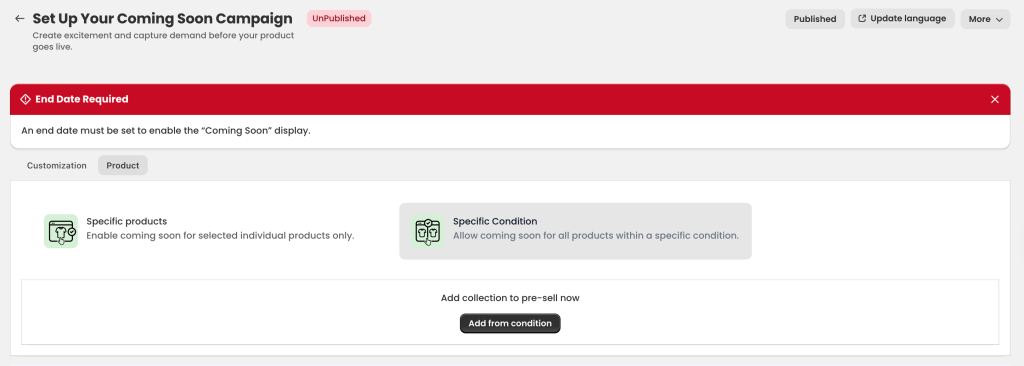
Option 2: Condition Based #
- Choose Specific Condition
- Add rules like:
- Product title
- Collection
- Tags
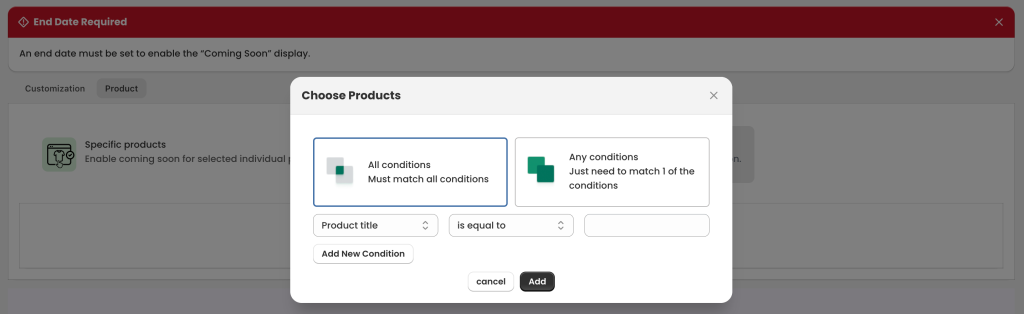
Condition Types: #
- All conditions → Must match all rules
- Any conditions → Match at least one rule
👉 Useful for bulk setup
Step 8: Save & Publish #
- Click Save
- Then make sure the campaign is Published
How It Works #
- Selected products will show a Coming Soon message
- Customers will see a countdown timer
- When timer ends → product becomes available (based on your setup)
Important Notes #
- ⚠️ End Date is required, otherwise campaign will not work
- Always check Preview before publishing
- Use clear messaging to build excitement


